
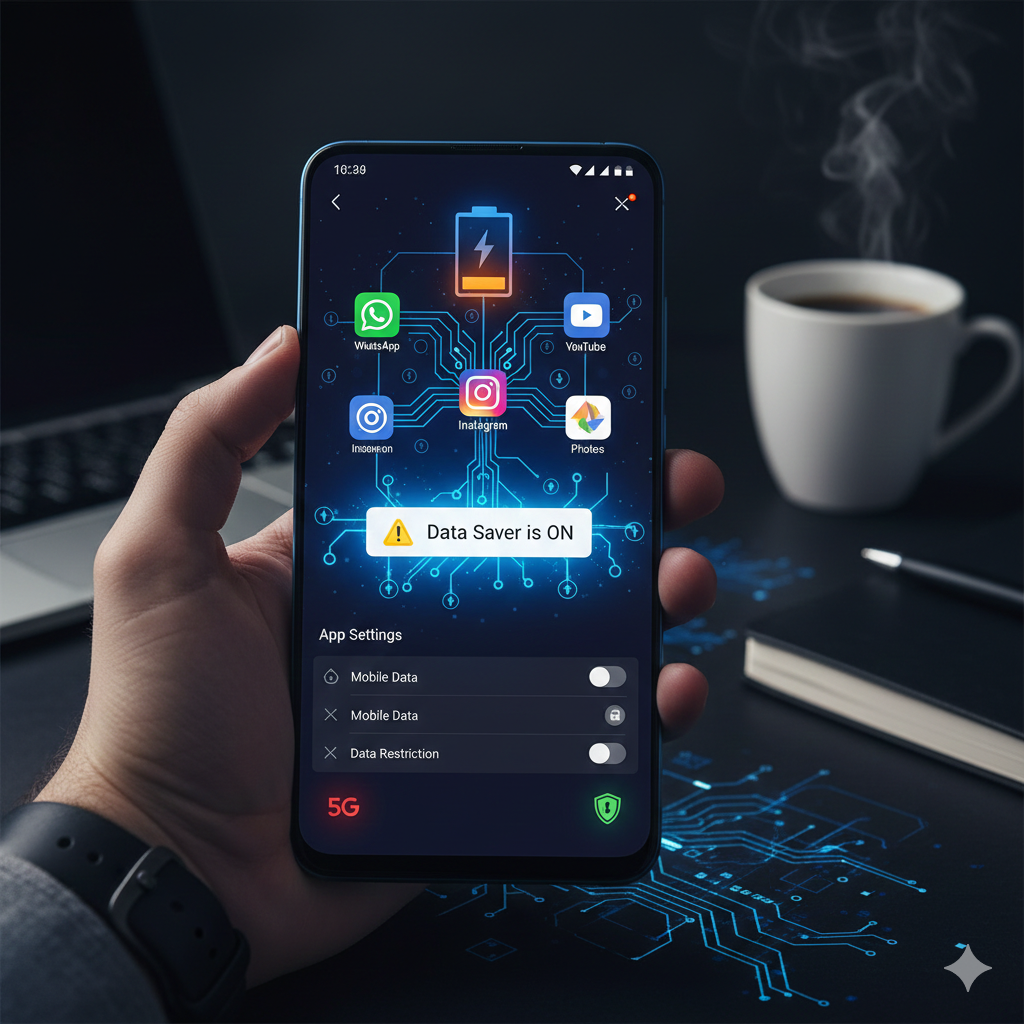
Currently, smartphones play a significant role in our lives. We buy a new phone, expecting it to be extremely fast and provide an excellent user experience. However, within days of receiving their new phone, many users encounter a major problem: their data is being consumed automatically. This problem plagues every smartphone user when they browse social media. After a short time, 50% or even 100% of their data is used up.

Have you ever wondered how data is being consumed even when you’re not actively using your phone? The answer is ‘Bloatware’ and ‘Hidden System Apps’. These apps constantly use data and battery in the background. In this article, we will discuss this problem and learn how you can save mobile data by changing the settings mentioned in this Mobile Data Saving Tips 2026 article, regardless of whether you have a Redmi, Samsung, Vivo, Oppo, or Realme phone.
What is Bloatware and how does it steal your data?
‘Bloatware’ refers to the apps that mobile companies pre-install on phones. These include many apps, such as unnecessary games, news apps, or the company’s own browsers, which we never need.

The developers of these apps pay mobile companies. These apps then run in the background to display advertisements and collect data. These apps running in the background affect your phone in three ways:
1. They waste your data and update without your permission.
2. They drain the battery because they constantly use the processor.
3. They slow down the phone because they occupy the phone’s RAM.
Mobile Data Saving Guide 2026: Best Data Saving Settings for All Mobile Companies
Smartphone Brands and their Mobile Data Saving Guides
Each company has its own software (UI), so the settings names may vary slightly. Below, you can change the settings according to your mobile brand.
1. Xiaomi, Redmi, and POCO (MIUI/Hyper OS)
Our mobile data is consumed the most on these phones because I also have a Redmi phone. These phones require the most settings adjustments to save data and battery.
How to turn off: Go to Settings > Lock screen > Now turn off Wallpaper Carousel.
Data Restriction: Go to Security App > Data Usage > Now, go to Restrict data usage and turn off mobile data for unnecessary apps.
System Apps: Go to Settings > System apps updater and turn off ‘Auto-update’.
2. Samsung mobile (One UI)
On Samsung phones, ‘Display’ and ‘Syncing’ consume the most data.
How to turn off Glance: Go to Settings > Wallpapers and style > select ‘None’ in Wallpaper services.
To enable Data Saver: Go to your phone’s Settings > then select the Connections option > then Data Usage > and now turn on Data Saver.
Deep Sleeping Apps: Go to Settings > then Battery > Now go to Background usage limits and add the apps you don’t want to run in the background at all.
3. Vivo and iQOO (Funtouch OS)
These two brands have the same software, so their settings are almost identical.
To disable lock screen wallpapers:Go to your phone’s Settings > Home screen> Lock screen options > Now, click on Lock screen settings, and turn off ‘Lock screen wallpapers’.
iManager:You can check ‘Data Management’ in the ‘iManager’ app on your phone and stop background data usage.
4. Realme, Oppo, and OnePlus (ColorOS/Oxygen OS)
The interface of these three smartphone brands is almost the same. These settings can also be used to save data on these phones.
How to disable Glance on Realme/Oppo phones:Open your phone’s settings > then tap on the Home screen option. Now go to the lock screen settings, and you will find ‘Glance’ at the bottom. Just turn it off.
Quick Freeze: Go to Settings > Battery > Advanced settings > Click on App Quick Freeze. Here you can select the apps that you want to “freeze” immediately after use.
5. Google Pixel and Motorola
Google and Motorola phones have fewer pre-installed apps (bloatware). However, some Google services consume a lot of data.
Google Discover: To turn off the feed that appears when you swipe left on your mobile’s home screen, go to Home Settings. From there, turn off the ‘Google App’ swipe.
Adaptive Battery: First, go to Settings > Battery > and keep it turned on in Adaptive preferences.
Best 5 “Universal” Settings to Save Data for All Android Phones
Since every user has a different Brand of mobile, you can use the settings given below. These settings will work on every smartphone brand:
A. Control Google Photos Backup
Google Photos backup is the biggest reason for data depletion. It secretly uploads all your photos and videos to the cloud.
Settings to turn off Google Photos backup:Open Google Photos > Profile > Photos Settings > Now turn off Backup. You can set the ‘Daily Limit’ to 10 or 20 MB, according to your needs.
B. Turn on Social Media’s ‘Data Saver’
We all watch Instagram, Facebook, and YouTube reels and videos. These apps also “pre-load” reels so that the videos play instantly as soon as you scroll. Here’s how to turn on data saver settings in social media apps:
Settings:Go to the Settings of these apps > Media/Data Usage and turn on “Data Saver” mode everywhere. Select “Never autoplay videos” everywhere to prevent videos from playing automatically and save your data.
C. Turn off ‘Auto-Update’ in the Play Store
Whenever the opportunity arises, the Play Store starts updating your apps. You can save data by turning off auto-updates.
Settings to turn off auto-updates: First, open the Play Store > then Settings > then Network Preferences > then set Auto-update apps to “Don’t auto-update”.
D. Restrict Background Data
If an app on your mobile device (such as a game or a useless news app) is using too much data, check the settings below.
Settings:First, long-press on the app> App Info > Data Usage. Then turn off Background Data.
E. Turn on Connection Speed
To monitor mobile data usage, keep the data speed displayed in the status bar. If you are not running anything on your phone and the speed is more than 100kb/s, you should understand that some apps are consuming data in the background.
Conclusion
Your smartphone should work for you, not the other way around, with your phone constantly draining data for extra apps. By following the mobile data saving tips 2026 mentioned above, you can save your daily data and also improve your phone’s performance. Saving data doesn’t just mean saving money on recharges, but also extending the life of your phone. When you prevent unnecessary background apps from running, your mobile processor stays cooler, and the battery lasts longer. Try these data-saving methods by adjusting your settings today and enjoy a better smartphone experience.
FAQ
Q1. Why does data get consumed faster on a 5G network than on 4G?
Answer: 5G networks are much faster, allowing mobile apps and updates to download large files in a very short time. To control this, you can set your phone to ‘Prefer LTE/4G’.
Q2. Is it safe to delete all ‘System Apps’?
Answer: No, because some essential system apps are necessary for the phone to function. You should only disable or uninstall apps that are not useful to you.
Q3. Is it safe to delete the pre-installed apps on my phone?
Answer:Yes, it is completely safe to delete some pre-installed apps, such as third-party apps. This will not affect your phone’s software and will improve its speed. You should not disable core apps on your phone, such as ‘Android System’ or ‘Google Play Services’.
Q4. What should I do if some apps on my phone won’t uninstall?
Answer:Some system apps on your phone cannot be completely deleted. You can ‘Disable’ them, and in App Info, turn off ‘Restrict Data Usage’ and ‘Clear Data’. This will prevent the app from using data and battery, and it will remain virtually inactive on your phone.
Q5. Does enabling Virtual RAM on a mobile phone consume more data?
Answer:No, virtual RAM (Memory Extension) in mobile phones has no connection to the internet or data consumption. Virtual RAM improves multitasking by utilizing a portion of your phone’s internal storage.